
A start signal decides when a bot opens a new trade. Below are the ready-made signals, which one to choose, and how to build your own indicator conditions in the builder.
Important: signals and ready-made settings don’t guarantee profit. Test conditions on history and don’t take extra risk.
1. What a start signal is
The signal is set in the “Start signal builder” block - in the bot creation form and on the edit page. A bot with the “Waiting for signal” status opens a trade as soon as the condition is met, and after the trade closes, it waits for a signal again.
Click the condition item and a list opens: ready-made signals at the top, indicators below. Each item has a question mark with a short tip and a link to a detailed article.
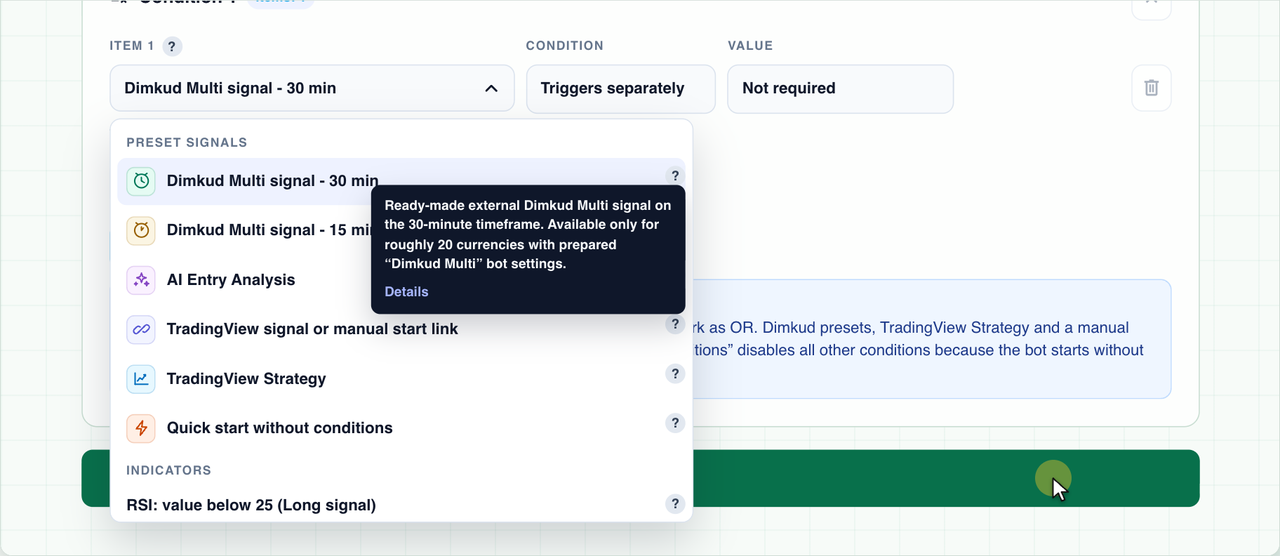
2. Ready-made signals
| Signal | How it works | When to choose it |
|---|---|---|
| Dimkud Multi - 30 / 15 min | Ready-made external signals on the 30- or 15-minute timeframe. They work for about 20 coins that have Dimkud Multi bot presets. | Your coin is on the Dimkud list - the simplest option. |
| AI entry analysis | The AI regularly studies the market, news, technical indicators and futures context and starts the bot only if its decision matches the bot’s direction. You choose the model and frequency; a request costs 1–3 AI credits. Available for the first 14 days or with an active subscription. | You want an assessment of the overall market, not a single indicator. |
| TradingView signal or manual start link | The bot starts when you launch it manually or when TradingView (or another system) sends a request to the bot’s personal link. | You have your own strategy or indicator in TradingView or an external system. |
| TradingView Strategy | The bot starts on a webhook from a TradingView strategy alert. The webhook URL and message appear after the bot is created. | You trade a TradingView strategy. |
| Quick start without conditions | The bot joins the start queue as soon as it’s waiting for a signal and passes the limits. After a trade closes, the next one opens within a minute. | The entry moment doesn’t matter, the bot should work all the time. |
More about the ready-made signals:
Dimkud Multi Signal
AI Entry Analysis as a Bot Start Signal
TradingView Signals to Start a Bot
3. Indicator conditions
If the ready-made signals don’t fit, build the condition yourself. The list has more than 50 templates: RSI, Stochastic, Bollinger Bands, Keltner Channels, EMA, MACD, SuperTrend, Ichimoku and more. For example, the “RSI below 25” template is a classic buy signal in the oversold zone.
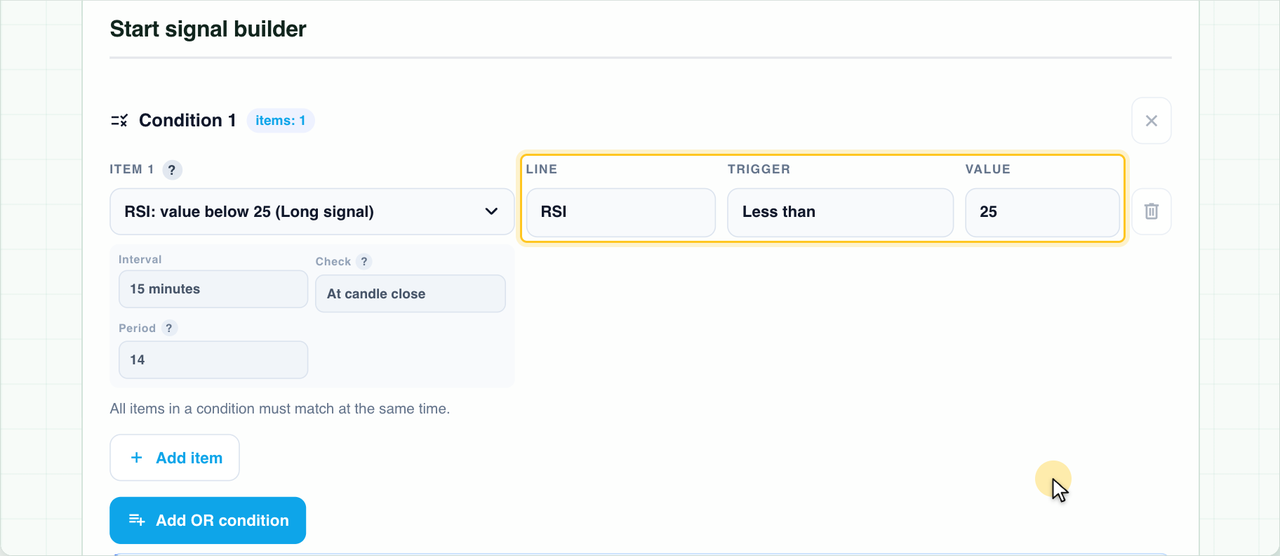
- Interval - the candle timeframe, from 1 minute to 1 day.
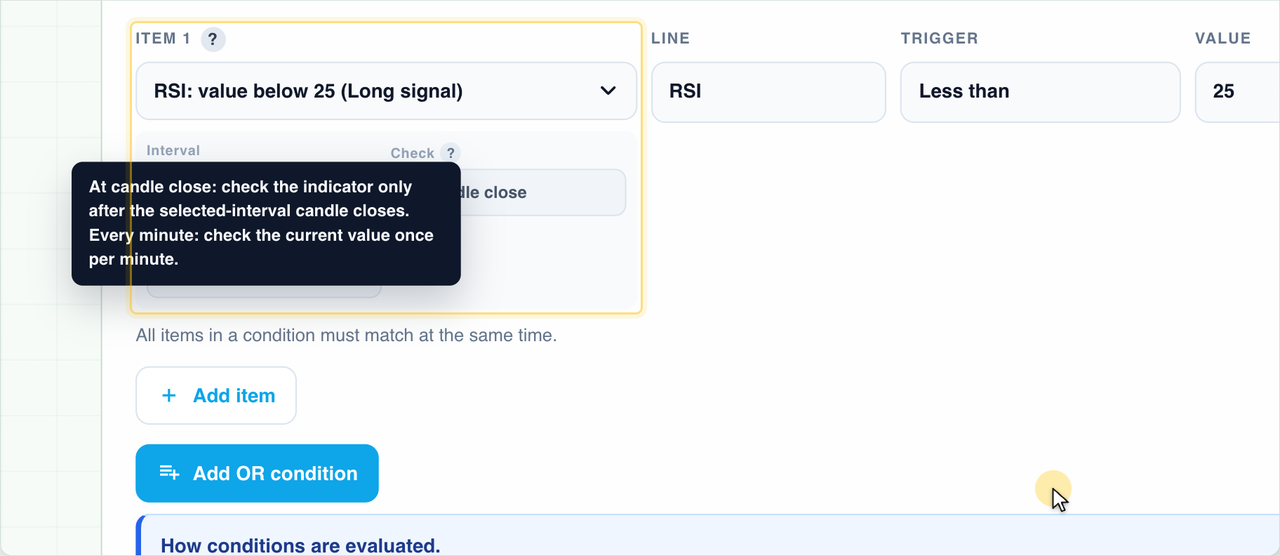
- The “At candle close” check looks at the indicator only after the candle closes - the signal is more reliable.
- The “Every minute” check takes the current value - the signal comes earlier, but the candle can still change.
- Period and other parameters of the indicator, for example RSI period 14.
- Line, trigger and value - what is compared, how and with what.
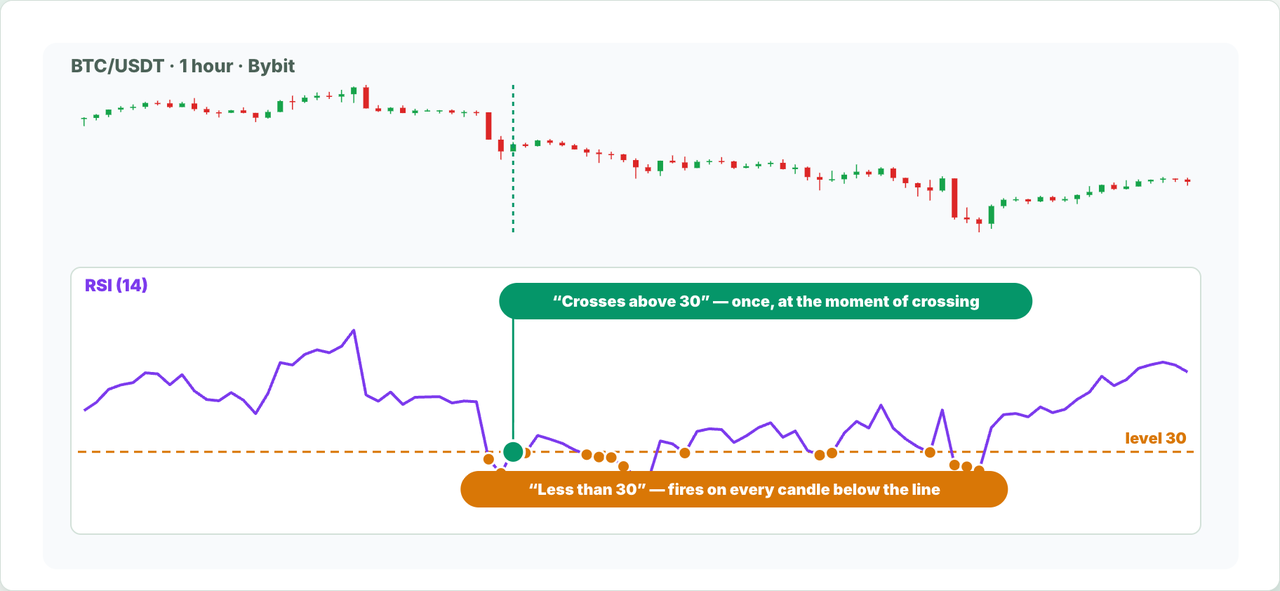
“Less than” and “Greater than” compare the indicator line with the value and are met on every candle where the condition is true. “Crosses above” fires only at the moment of crossing: on the previous candle the indicator was not above the value, and on the current one it is above (“Crosses below” is the opposite).
Some templates compare the indicator not with a number but with another line: the MACD line with the signal line, the stochastic K line with the D line, the price with the EMA. Then the value field shows that line.
Indicator articles:
RSI Indicator
Bollinger Bands Indicator
MACD Indicator
4. AND items and OR groups
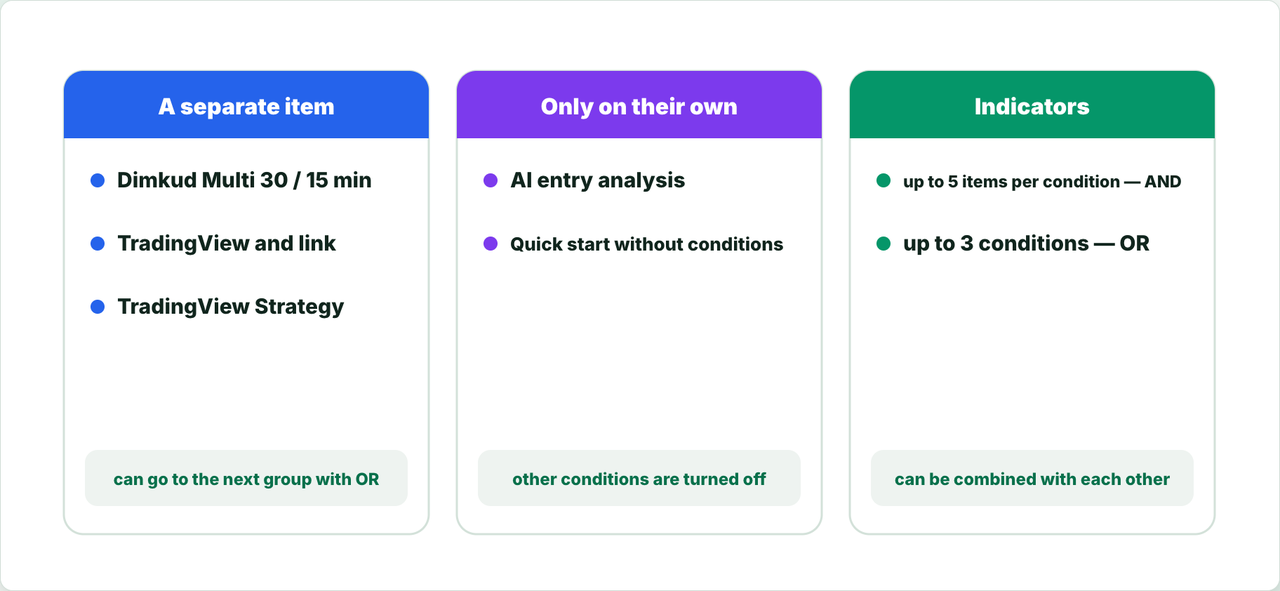
- Items inside one condition are linked by a logical AND: the bot starts only when all of them match at once. Up to 5 items per condition.
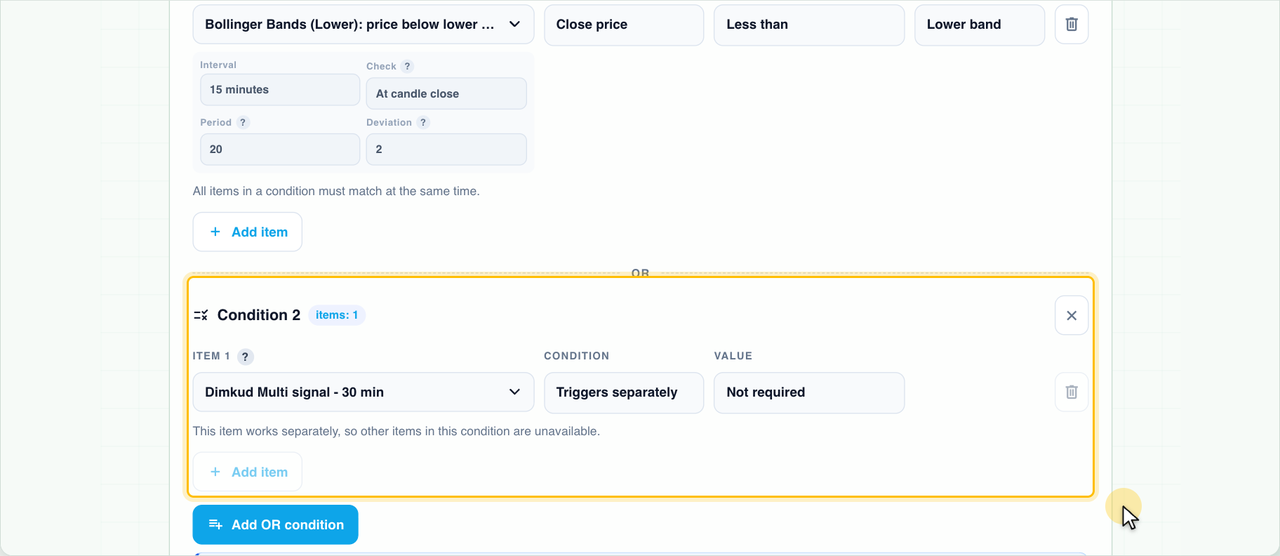
- Condition groups (“Add OR condition”) are linked by a logical OR: the bot starts when any of them is met. Up to 3 groups.
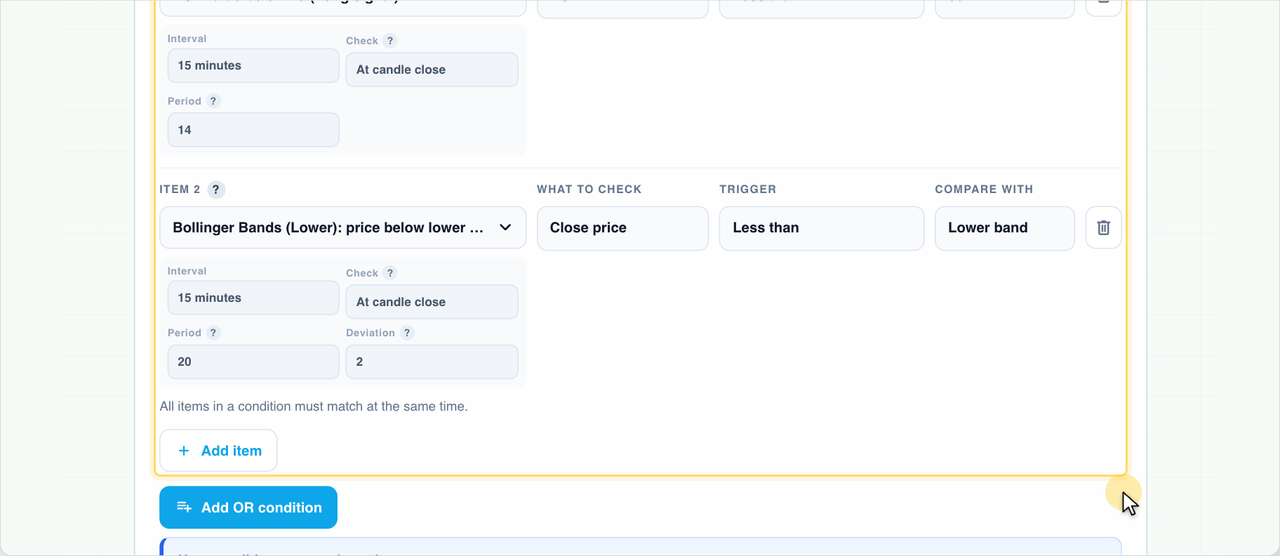
| Condition 1 | OR | Condition 2 |
|---|---|---|
| RSI below 30 and price below the lower Bollinger band | → | Dimkud Multi signal - 30 min |
What combines with what:
- Ready-made Dimkud, TradingView and link signals always stand as a separate item in a group. You can’t mix them with indicators in one condition, but you can put them in the next group with OR.
- AI analysis and quick start work only on their own: other conditions are turned off with them.
5. Which pair the indicators use
Indicators are calculated for the bot’s own pair and exchange: if the bot trades BTC on Bybit, RSI is taken from BTC on Bybit. Conditions are checked every minute; conditions with the “At candle close” check - when the candle of their interval closes.
6. How to change the signal
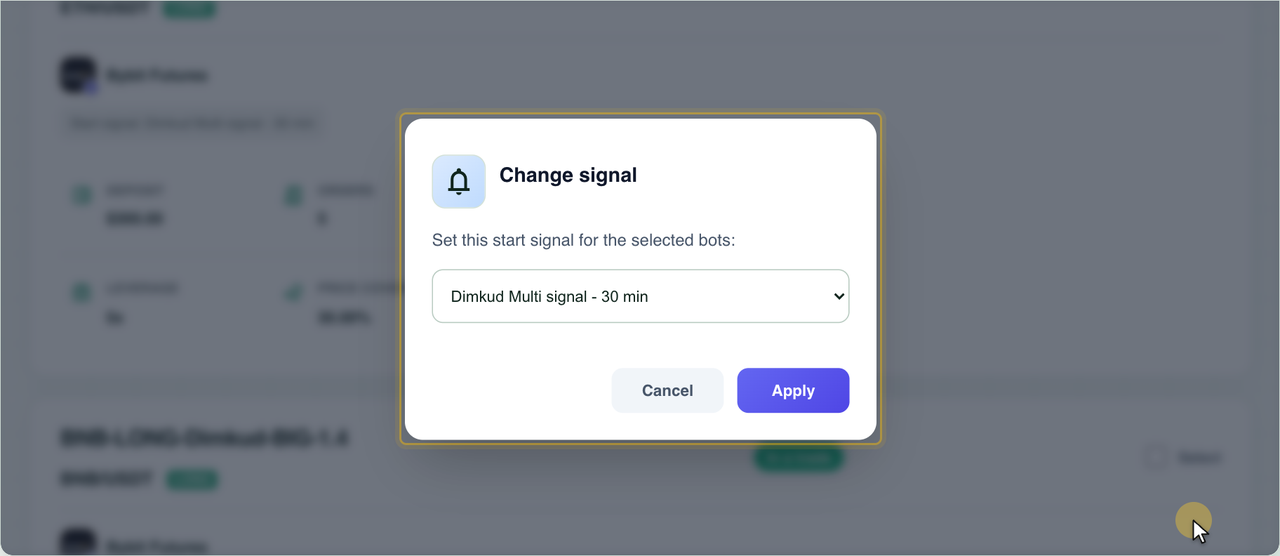
You can change the signal at any time on the bot’s edit page: it’s saved right away and works at the next start. To set one of the ready-made signals for several bots at once, tick them in the “All Bots” list and click “Change signal” in the bulk actions panel.
In short
- Your coin is on the Dimkud list - use the Dimkud Multi signal.
- Need your own entry - build indicator conditions.
- Items in a condition are AND, groups are OR.
- The candle-close check is more reliable, every minute is faster.