
The simple form and the Bots Wizard are great for a quick start. The full form is for when you want to set every parameter of a bot yourself. Below are all the fields in order, the DCA grid settings in simple words, the dynamic deposit, and the rules for editing a running bot.
Important: bots and ready-made settings don’t guarantee profit. Leverage increases both profits and losses. The numbers in this article are an example, not investment advice.
1. Where to find the full form
Open the “All Bots” page and click “Create bot”. If you need to create many bots with ready-made settings at once, the Bots Wizard is more convenient.
Creating bots in bulk:
How to create multiple bots with Bot Wizard
2. General settings
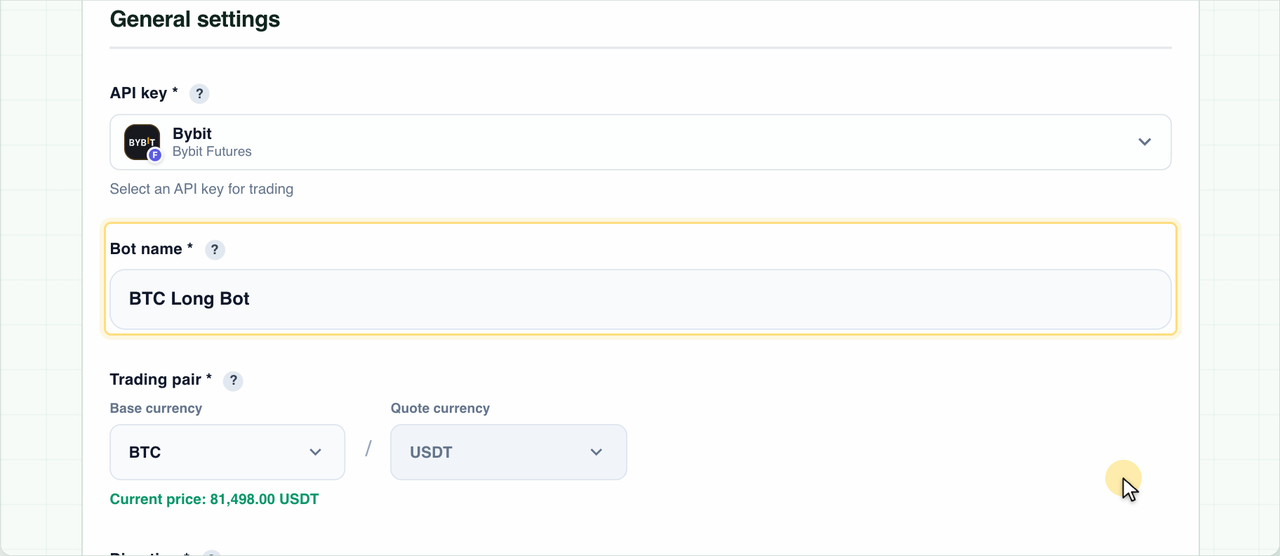
- The API key sets the exchange the bot will trade on.
- The bot name is only for your convenience in the list and reports.
- Trading pair - only pairs that can be traded on the selected exchange are available. The current price is shown under the pair.
- Direction: Long trades on a rise, Short trades on a fall.
Under the direction, the form shows the trading mode. On Binance and Bybit, bots work in Hedge mode, so Long and Short on the same coin don’t get in each other’s way. Hyperliquid only has One Way mode: two bots, Long and Short, on the same pair will interfere with each other - if a Short opens while a Long trade exists, the Long is closed by the Short amount.
3. Dimkud presets
The easiest way to start is with a preset. In the “Ready-made settings presets” block, pick the Dimkud settings for your coin and click “Load settings”. The form fills in the pair, direction, grid settings, leverage and Take Profit, and sets Dimkud Multi as the start signal. The deposit doesn’t change - it stays as you entered it.
4. DCA grid settings in simple words
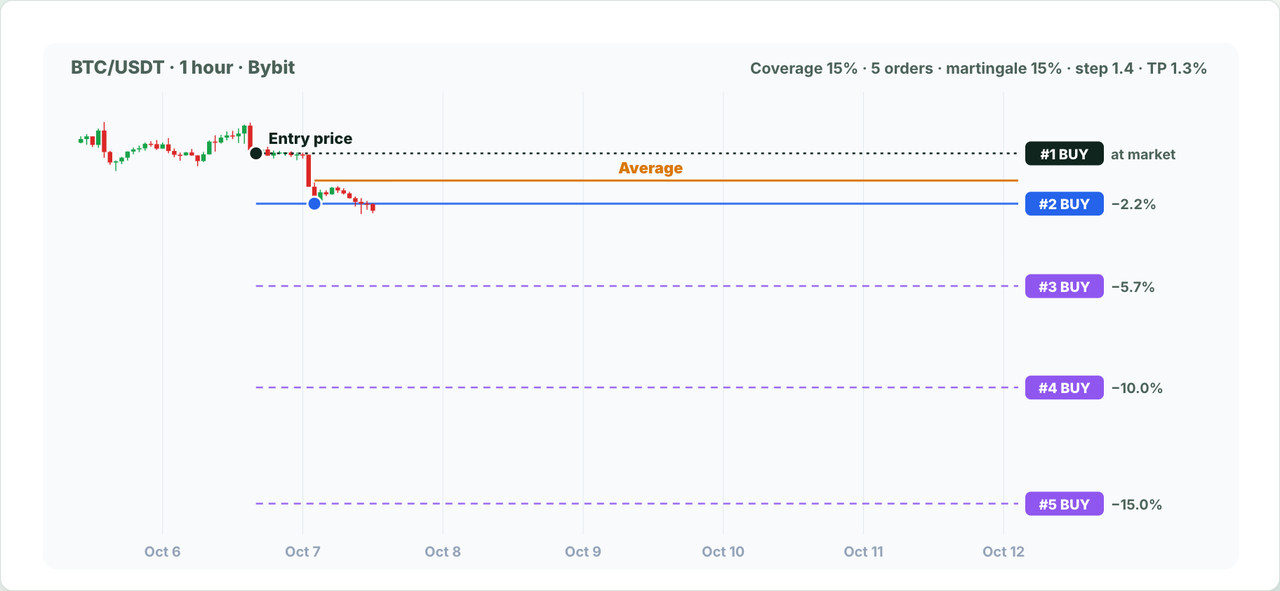
A DCA bot doesn’t buy the whole position at once. The first order opens at market, and the other limit orders wait below the entry price (above it for Short). If the price moves against the position, the orders fill and the average position price improves.
Four parameters set the shape of the grid:
| Parameter | What it sets | Typical |
|---|---|---|
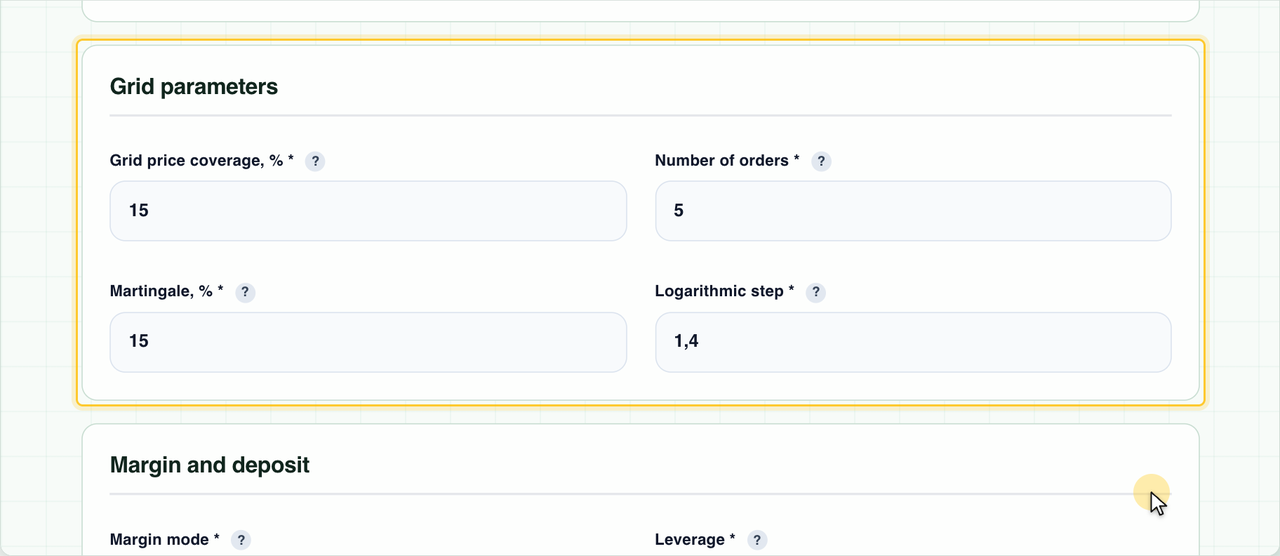
| Grid coverage, % | The grid depth: the distance from the entry price to the last order. At 15%, the grid covers a price drop of up to −15%. | 15 to 50% in Dimkud Long presets |
| Number of orders | How many orders the grid has, including the first market order. The more orders, the smaller each one and the more often the bot averages the position. | 1 to 25 |
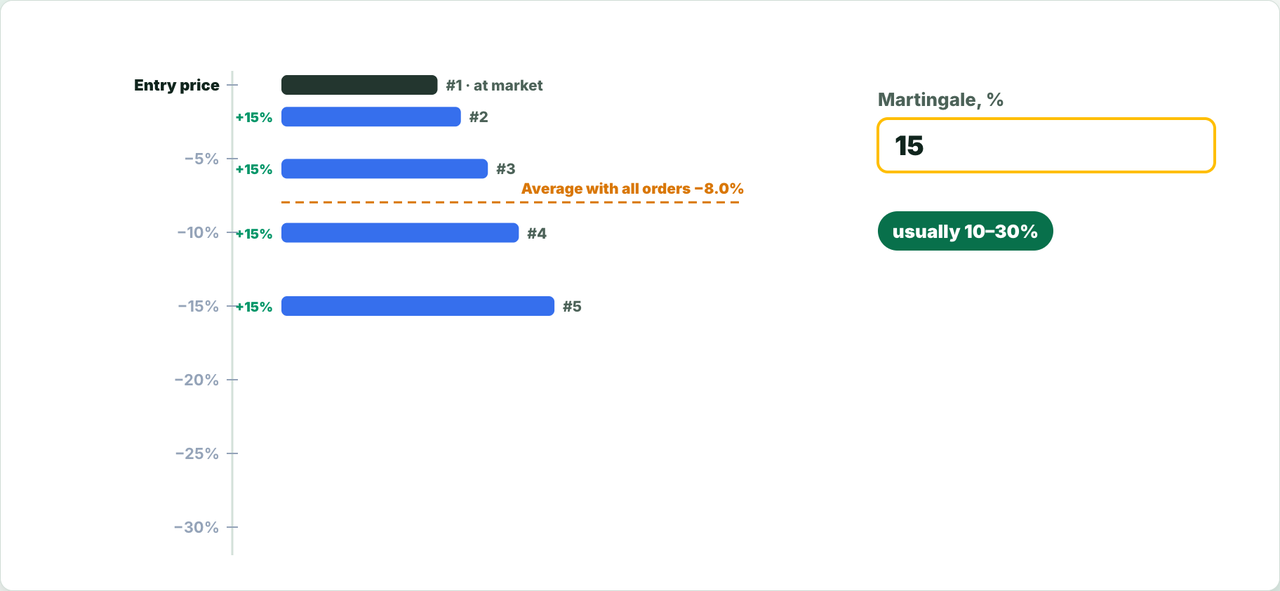
| Martingale, % | By how many percent each next order is bigger than the previous one. Bigger lower orders pull the average price down more strongly. | 10–30% |
| Logarithmic step | The distance between orders. At 1, all steps are equal; the higher the value, the denser the orders near the entry price and the wider the gaps at the bottom of the grid. | 1.1–1.7 |
The larger the coverage, the deeper the drop the bot can withstand, but the further from the price the lower orders are and the less often they fill.
More about the grid settings:
Martingale Grid: How Increasing Safety Orders Change Risk
Logarithmic Grid DCA: Why Safety-Order Steps Get Wider
5. Margin and deposit
- Margin mode: Cross uses the whole account balance, Isolated limits the risk to the assigned margin.
- Leverage multiplies the position. We recommend no more than 5x, and 2–3x to lower the risk.
- Bot deposit - the margin for the whole grid. The position on the exchange can grow up to deposit × leverage: for example, $500 × 5 = up to $2,500.
To choose the amount per bot with leverage and a reserve in mind, use the bot amount calculator.
6. Take Profit and Stop Loss
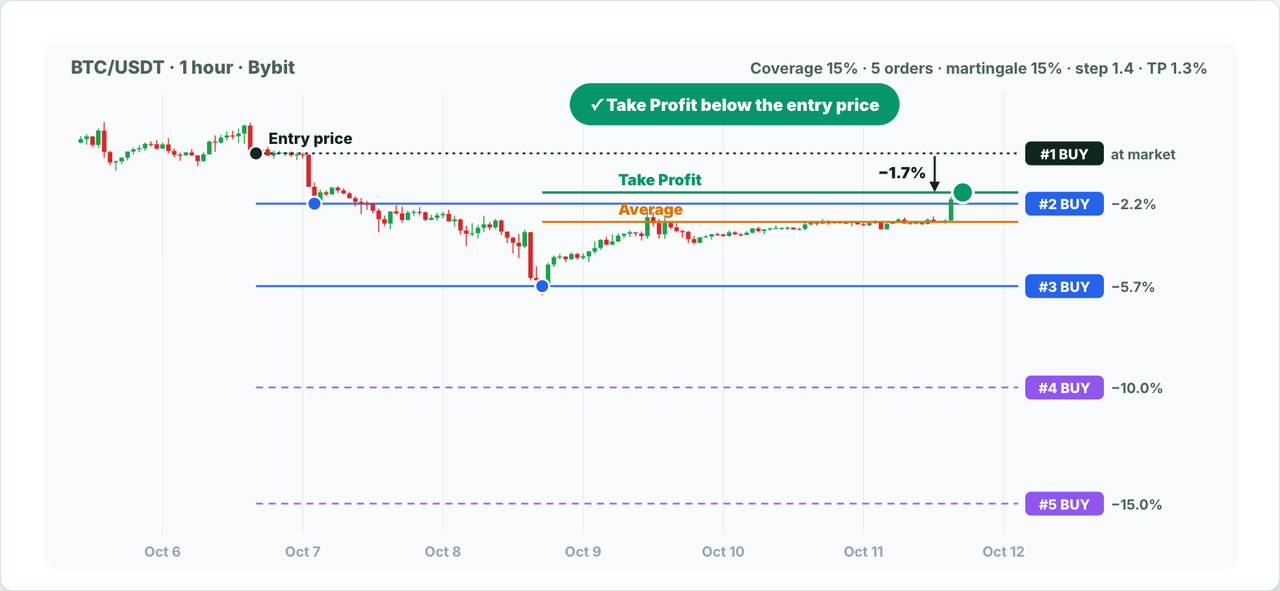
Take Profit is calculated from the average position price. Each filled order lowers the average price, and the bot moves the Take Profit lower. That’s why the price doesn’t need to return to the entry point to close in profit - a bounce is enough.
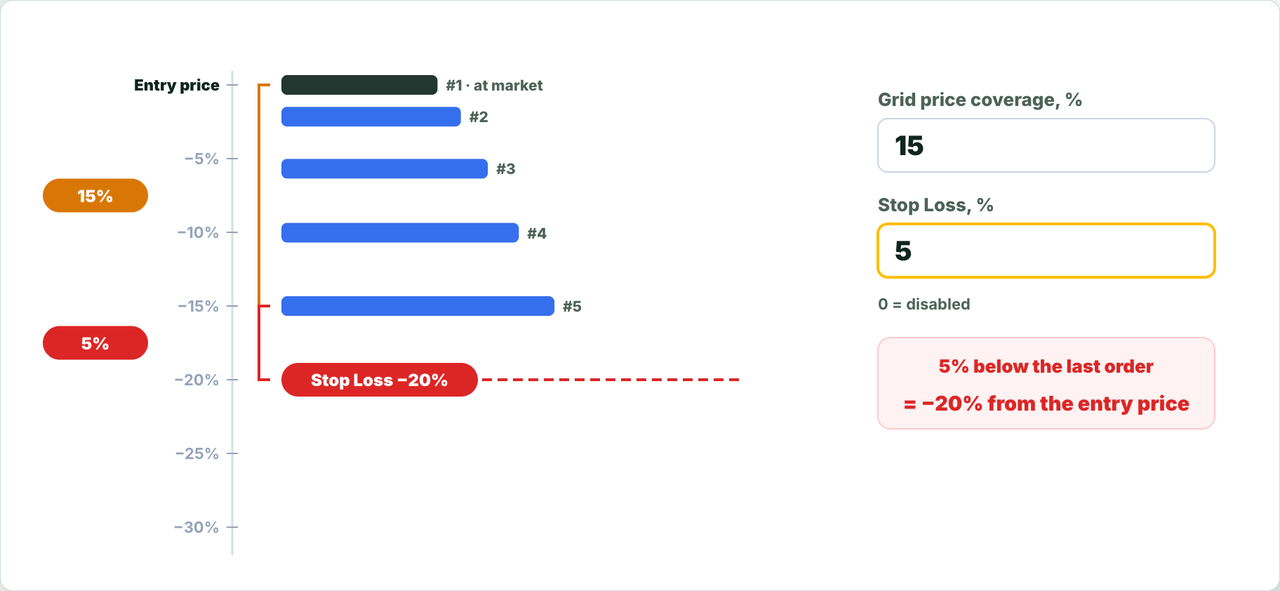
Stop Loss limits the loss; a value of 0 turns it off. Stop Loss is counted from the last order of the grid, that is, from the coverage percentage.
Example: coverage 15% and Stop Loss 5%. The position closes if the price drops 5% below the last order, which is 20% below the trade’s entry price.
7. Start signal
At the bottom of the form is the start signal builder. It decides when the bot opens a new trade: a ready-made Dimkud signal, TradingView, AI analysis or your own conditions.
About the Dimkud Multi signal:
Dimkud Multi Signal
8. Dynamic deposit
Under the deposit amount there is a “Dynamic deposit” switch. It changes the bot amount after a trade closes: part of the profit is added to the deposit, and the bot grows with its results.
- Profit share, % - the percentage of net profit (after fees) added to the deposit after a Take Profit close.
- Maximum amount - an optional cap: the deposit won’t grow above it. An empty field means no limit.
- Reduce after Stop Loss - after a Stop Loss close, the bot subtracts the set loss share from the deposit.
- Minimum amount - the lower limit the deposit won’t go below.
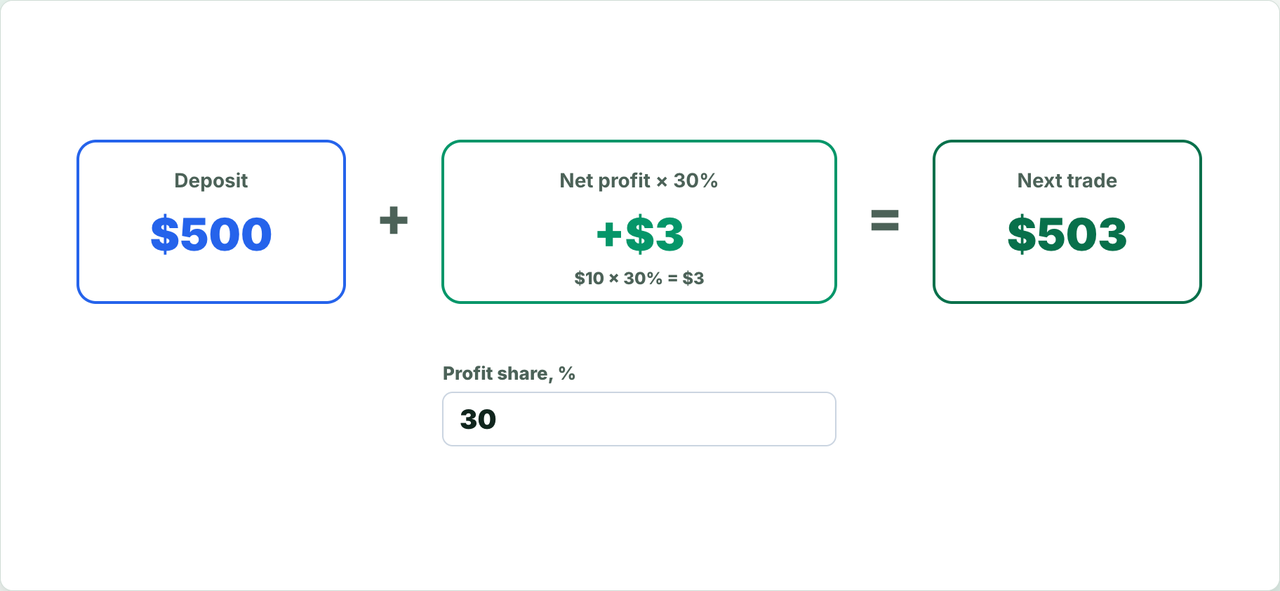
Example: a $500 deposit, the trade closed at Take Profit with a net profit of $10, profit share 30%. The deposit grows by $3, and the next trade starts with $503.
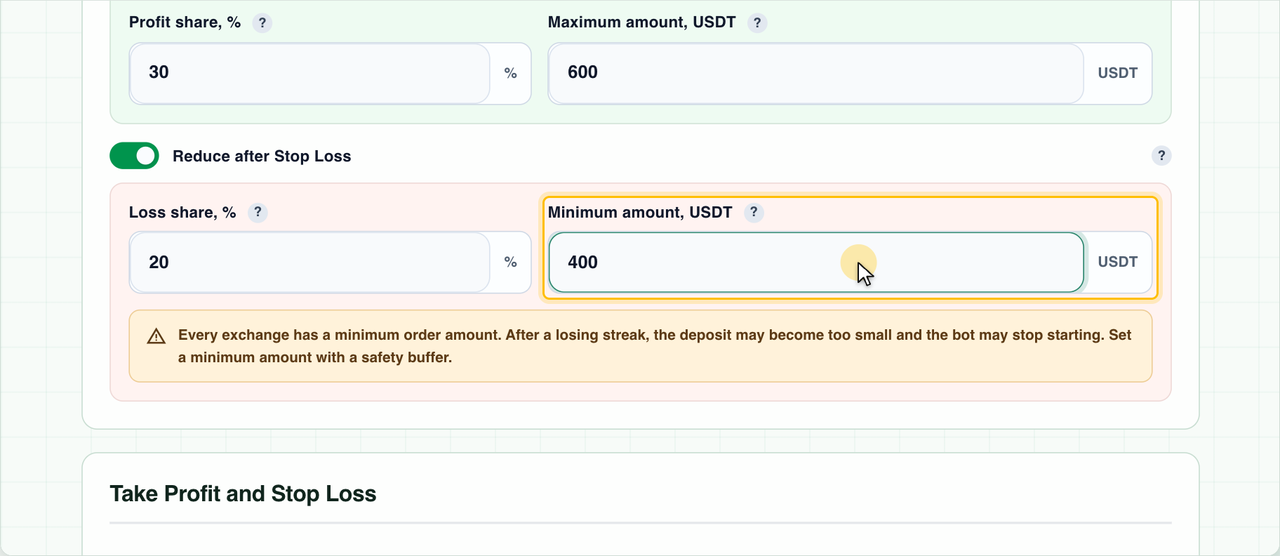
Important: every exchange has a minimum order amount. After a series of losing trades, the deposit can become too small, and the bot will stop starting. Set the minimum amount with some headroom.
You can also turn on the dynamic deposit for several bots at once: tick them in the “All Bots” list and click “Dynamic deposit” in the bulk actions panel.
About reinvesting profit:
Compounding Growth: Reinvesting Crypto Bot Profit with Limits
9. Editing a running bot
You can change the settings after creating a bot: open the bot’s page and click “Edit”. When the changes take effect depends on the bot’s status:
| What changes | Bot waiting for a signal or stopped | Bot in a trade |
|---|---|---|
| API key, trading pair, direction | right after saving | locked until the trade closes |
| Grid settings, leverage, margin mode, deposit, Take Profit, Stop Loss, name | right after saving | from the next trade |
| Start signal | right after saving | saved right away, used at the next start |
| Dynamic deposit | right after saving | saved right away, already applies when the current trade closes |
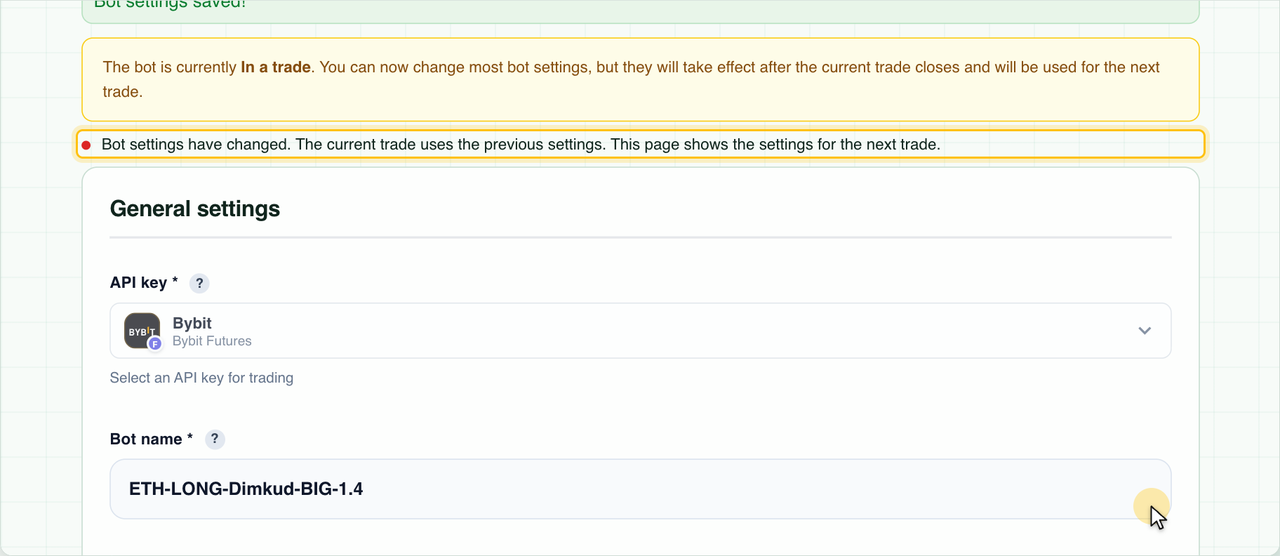
If the bot is in a trade, the form warns that changes will apply after the trade closes. After you save, this note appears:
Bot settings have changed. The current trade uses the previous settings. This page shows the settings for the next trade.
In short
- A Dimkud preset gives a quick start; loading a preset doesn’t change the deposit.
- Coverage and the number of orders set the depth and density of the grid; martingale and the logarithmic step set how the volume is distributed.
- Take Profit is calculated from the average price, Stop Loss from the last grid order.
- The dynamic deposit reinvests a share of net profit; set the minimum amount with headroom.
- Changes to a bot in a trade apply from the next trade.
Open the “Create bot” form
https://elixoai.com/dexbots/create_bot.php