
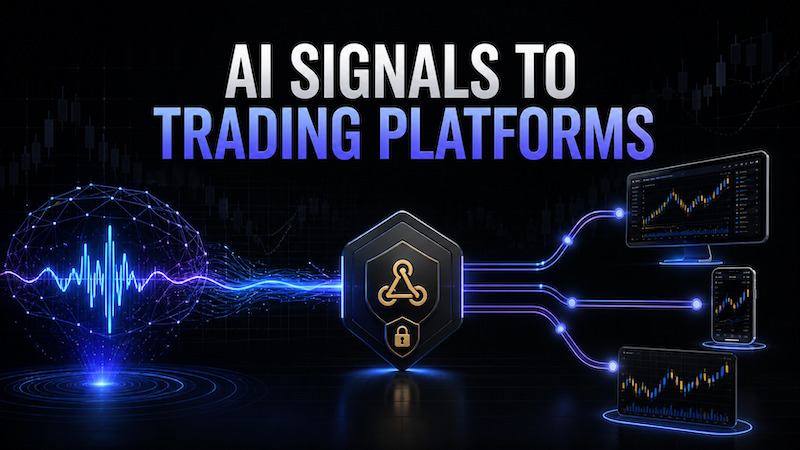
Elixo Bots lets you generate trading signals automatically in two main ways:
- through AI Alert - automated, scheduled AI entry-point analysis (AI entry-point analysis);
- through the TradingView strategy Multi DCA Strategy [Dimkud] and other TradingView Alerts (Multi DCA Strategy overview).
If a trading platform can receive a TradingView-compatible Webhook directly, you can send the signal straight to it.
For example, this approach works with a number of automation services such as 3Commas, Veles, RevenueBot, WunderTrading, TradersPost, Cornix, Pionex, or your own system with a Webhook API.
But what if you need to open a trade automatically in MetaTrader 5, TradeLocker, Match-Trader, DXtrade, cTrader, Capital.com, Alpaca or another platform that does not provide a simple, universal TradingView Webhook for opening trades?
In that case, between the signal source and the trading account you need a dedicated Webhook bridge - an intermediary service.
One option we recommend considering for this task is AlgoWay.
AlgoWay receives a structured Webhook, identifies the symbol, direction and trade size, and then sends the command directly to the trading platform through its API, a dedicated connector or an Expert Advisor for MetaTrader 5. AlgoWay presents this workflow as suitable not only for TradingView, but also for custom bots and other external Webhook systems.
Why do you need AlgoWay?
The overall workflow looks like this:
Elixo AI Alert / TradingView → Webhook → AlgoWay → broker or trading platform
For example:
Elixo AI Alert → AlgoWay → MetaTrader 5
or:
Multi DCA Strategy [Dimkud] → TradingView Alert → AlgoWay → TradeLocker
or:
Elixo AI Alert → AlgoWay → Alpaca → an AAPL trade
In this workflow, AlgoWay performs several tasks:
- receives the Webhook;
- parses the JSON;
- identifies the BUY, SELL, LONG, SHORT or CLOSE action;
- maps the trading instrument;
- determines the position size;
- processes Stop Loss and Take Profit if needed;
- sends the trading command to the selected platform;
- saves the processing result in Webhook Logs.
This means you do not have to develop a Webhook receiver server yourself, maintain an API connection for each broker, write a separate MT5 connector or keep your own error logs.
That is the main advantage of this kind of intermediary service.
Which platforms can you connect through AlgoWay?
AlgoWay's supported destinations include:
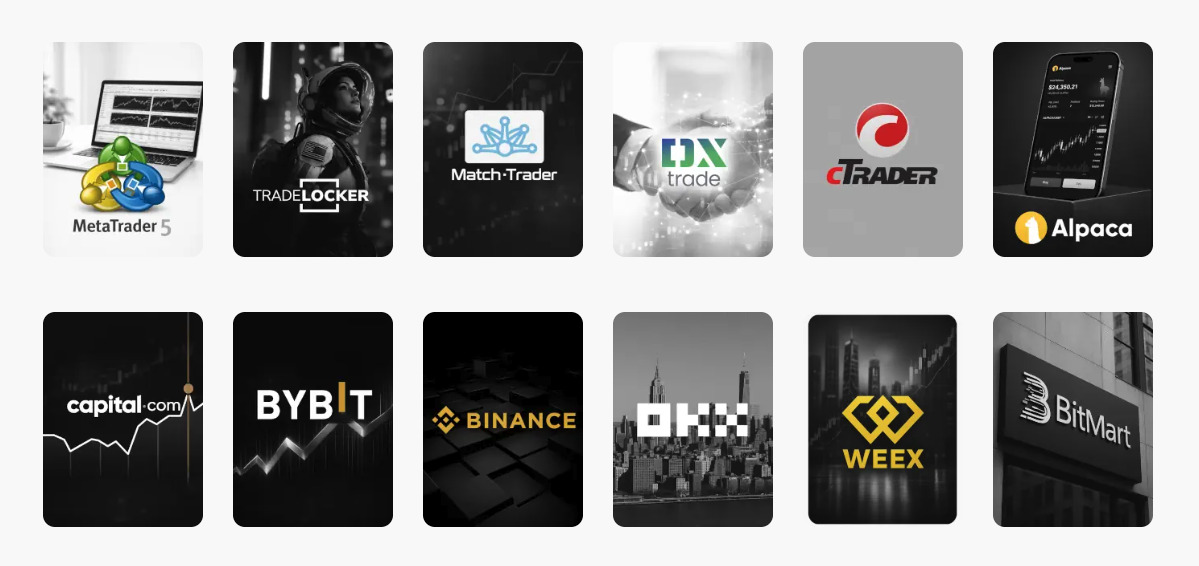
| Platform | How AlgoWay connects |
|---|---|
| MetaTrader 5 | through the AlgoWayWS-MT5 Expert Advisor |
| TradeLocker | through the TradeLocker account integration |
| Match-Trader | through an account and Broker ID |
| DXtrade | through the DXtrade integration |
| cTrader | through the cTrader connector / Open API |
| Capital.com | through the Capital.com API |
| Alpaca | through the Alpaca Trading API |
| Binance | through an API |
| Bybit | through an API |
| OKX | through an API |
| Coinbase | through an API |
| Hyperliquid | through an API |
| Tradovate | through an account integration |
| and others | depending on the integrations available in AlgoWay |
AlgoWay also supports different platform categories: MT5, prop/CFD platforms, crypto exchanges, stock brokers with APIs and futures platforms.
It is important to understand that “connect any broker” does not literally mean every broker in existence. AlgoWay automation service must have a supported integration, or the broker must operate through a supported platform such as MetaTrader 5, TradeLocker or Match-Trader.
What can you use as a signal source?
In our case, two options are especially useful.
1. Elixo AI Alert
AI Alert is the automated mode of the AI Entry-Point Analysis service. AI entry-point analysis
You specify:
- the asset;
- LONG or SHORT;
- the timeframe;
- the strategy and prompt;
- the information sources;
- Take Profit and Stop Loss;
- how often to repeat the analysis.
The AI regularly analyzes the market again.
The analysis can result in:
OPEN LONG
OPEN SHORT
or:
WAIT
A Webhook is sent only for an opening decision: OPEN LONG or OPEN SHORT. WAIT is saved in the analysis history but does not trigger an external trade.
This is convenient: AlgoWay receives the actual signal authorizing a position to be opened, rather than every analysis result.
2. Multi DCA Strategy [Dimkud] in TradingView
Multi DCA Strategy [Dimkud] is a strategy builder for TradingView that lets you combine signals, indicators, filters, a DCA grid, Take Profit, Stop Loss and other rules. Multi DCA Strategy overview: Multi DCA Strategy overview
You can use TradingView Alerts in two ways.
First option: send only a signal to start a trade or a DCA bot.
In this case, the trading platform creates and manages the DCA grid itself, and in Multi DCA Strategy you enable Send Alert only for First Order.
Second option: the strategy determines each trading action itself, and individual orders are sent through the Webhook.
In the second case, it is particularly important for quantity, direction, position closing, symbol mapping and Hedge/Reverse logic to be configured consistently on both sides.
How AlgoWay interprets a Webhook
AlgoWay uses JSON.
A minimal request to open a position usually contains four main parameters:
{
  "platform_name": "metatrader5",
  "ticker": "EURUSD",
  "order_action": "buy",
  "order_contracts": "0.10"
}
Main fields:
| Field | Meaning |
|---|---|
platform_name |
where to send the trade |
ticker |
the trading instrument |
order_action |
buy, sell, long, short, flat, etc. |
order_contracts |
position size |
price |
price, if required |
sl_price |
absolute Stop Loss price |
tp_price |
absolute Take Profit price |
stop_loss |
distance to SL |
take_profit |
distance to TP |
trailing_pips |
trailing stop |
order_type |
market, limit or stop |
If order_type is omitted, AlgoWay usually treats the entry as a Market Order.
Limit and Stop orders additionally require price.
Platform names in JSON
In AlgoWay, you must use the correct platform_name.
For example:
MetaTrader 5 = metatrader5
TradeLocker  = tradelocker
Match-Trader = matchtrader
DXtrade      = dxtrade
cTrader      = ctrader
Capital.com  = capitalcom
Alpaca       = alpaca
Binance      = binance
Bybit        = bybit
OKX          = okx
The full list depends on AlgoWay's current set of integrations.
General AlgoWay setup
For most platforms, the initial workflow is almost identical.
Step 1. Create an AlgoWay account
After signing in, open the Dashboard.
Step 2. Create a Webhook
Choose the option to create a Trial Webhook or Main Webhook.
For TradingView, you normally select:
Source: TradingView
and set the required trading platform as the Destination / Platform:
- MetaTrader 5;
- TradeLocker;
- MatchTrader;
- DXtrade;
- cTrader;
- Capital.com;
- Alpaca;
- Binance;
- Bybit;
- and so on.
The same principle applies to Elixo AI Alert: AI Alert is an external Webhook system and can generate JSON in a TradingView-compatible format.
If the current AlgoWay form does not offer a separate Elixo/custom webhook source, a TradingView-compatible route is usually used for this workflow. Be sure to confirm that it works with a test request before live trading. AlgoWay explicitly states that its JSON schema is intended not only for TradingView, but also for custom bots and external webhook systems.
Step 3. Connect your trading account
Further setup depends on the platform.
For example:
MetaTrader 5 requires an Expert Advisor to be installed.
Alpaca requires an API Key and API Secret.
TradeLocker requires account and server details.
Capital.com uses its own API.
We explain these options in more detail below.
Step 4. Save the Webhook and obtain its URL
After creating the route, AlgoWay provides a unique Webhook URL.
Its structure is approximately as follows:
https://algoway.co/YOUR-WEBHOOK-UUIDUse only the URL from your own account.
Do not publish it publicly: it is effectively the address to which trading commands are sent.
Connecting Elixo AI Alert to AlgoWay
Now let's look at the option that is most relevant to Elixo users.
AI Alert supports TradingView-compatible variables.
For example:
{{ticker}}
{{strategy.order.action}}
{{strategy.market_position}}
{{close}}
{{take_profit_price}}
{{stop_loss_price}}
{{decision}}
{{confidence}}
For OPEN LONG:
{{strategy.order.action}}becomes:
buyFor OPEN SHORT, it becomes:
sellAnd {{ticker}} becomes, for example:
BTCUSDTor, for stocks:
AAPLAI Alert substitutes the actual values into Message before sending it and sends valid JSON as application/json.
Example: AI Alert → AlgoWay → MetaTrader 5
Suppose you need to open a 0.10-lot trade in MT5.
In AlgoWay, create a route:
Source: TradingView-compatible Webhook
Platform: MetaTrader 5
Then paste the URL generated by AlgoWay into the Webhook URL field in Elixo AI Alert.
In the Message field, you can use:
{
  "platform_name": "metatrader5",
  "ticker": "{{ticker}}",
  "order_action": "{{strategy.order.action}}",
  "order_contracts": "0.10",
  "price": "{{close}}"
}
For example, on OPEN LONG for EURUSD, AlgoWay will actually receive a message such as:
{
  "platform_name": "metatrader5",
  "ticker": "EURUSD",
  "order_action": "buy",
  "order_contracts": "0.10",
  "price": "1.1675"
}
The command is then passed to the connected MetaTrader 5 terminal.
How to add Stop Loss and Take Profit
Elixo AI Alert provides these useful variables:
{{take_profit_price}}
{{stop_loss_price}}
They contain the calculated absolute prices.
AlgoWay, in turn, supports:
tp_price
sl_price
for absolute price levels.
Therefore, if TP and SL are configured in AI Alert, you can use:
{
  "platform_name": "metatrader5",
  "ticker": "{{ticker}}",
  "order_action": "{{strategy.order.action}}",
  "order_contracts": "0.10",
  "sl_price": "{{stop_loss_price}}",
  "tp_price": "{{take_profit_price}}"
}
This is usually safer than directly using:
"stop_loss": "{{stop_loss}}"because in Elixo, {{stop_loss}} is a percentage, whereas in AlgoWay the value of stop_loss may be interpreted as pips, points or another unit, depending on the specific route.
AlgoWay also specifically warns that the units of the distance-based fields stop_loss and take_profit may depend on the platform.
An important distinction: AI Alert does not choose the position size
The AI analysis determines:
- whether to enter;
- LONG or SHORT;
- confidence;
- the reasons;
- the risks.
But the trading position size must be determined separately.
Therefore:
"order_contracts": "0.10"or:
"order_contracts": "1"is something you set yourself.
You can also control the size through the Quantity Multiplier settings in AlgoWay.
For example, some routes use:
Quantity Multiplier: Absolute
Multiplier: 1
In this case, the value of order_contracts is used directly.
Example: AI Alert → AlgoWay → Alpaca
Suppose AI Alert is analyzing AAPL stock.
You want to buy one share when the result is OPEN LONG.
JSON:
{
  "platform_name": "alpaca",
  "ticker": "{{ticker}}",
  "order_action": "{{strategy.order.action}}",
  "order_contracts": 1
}
AI Alert may send:
{
  "platform_name": "alpaca",
  "ticker": "AAPL",
  "order_action": "buy",
  "order_contracts": 1
}
AlgoWay receives the message and sends the corresponding request through the Alpaca Trading API.
AlgoWay recommends using Alpaca Paper Trading first and switching to Live only after testing.
Connecting Multi DCA Strategy [Dimkud] through AlgoWay
Setup with TradingView is even simpler, because AlgoWay was designed to work with TradingView placeholders.
Standard template:
{
  "platform_name": "metatrader5",
  "ticker": "{{ticker}}",
  "order_contracts": "{{strategy.order.contracts}}",
  "order_action": "{{strategy.market_position}}",
  "price": "{{close}}"
}
TradingView automatically replaces:
{{ticker}}
{{strategy.order.contracts}}
{{strategy.market_position}}
{{close}}
with the values of the current strategy event. This format is used explicitly in the AlgoWay documentation.
How to create an Alert in TradingView
After creating the AlgoWay Webhook:
- open a TradingView chart;
- add Multi DCA Strategy [Dimkud];
- configure the strategy;
- create an Alert;
- select the required strategy event;
- enter the JSON in Message;
- open Notifications;
- enable Webhook URL;
- paste the URL from AlgoWay;
- save the Alert.
If the strategy was tested on closed candles, use the corresponding Alert trigger mode so that the live signal matches the backtest logic.
Before going live, you must test the Alert on Demo or with the minimum size.
MetaTrader 5: how to connect through AlgoWay
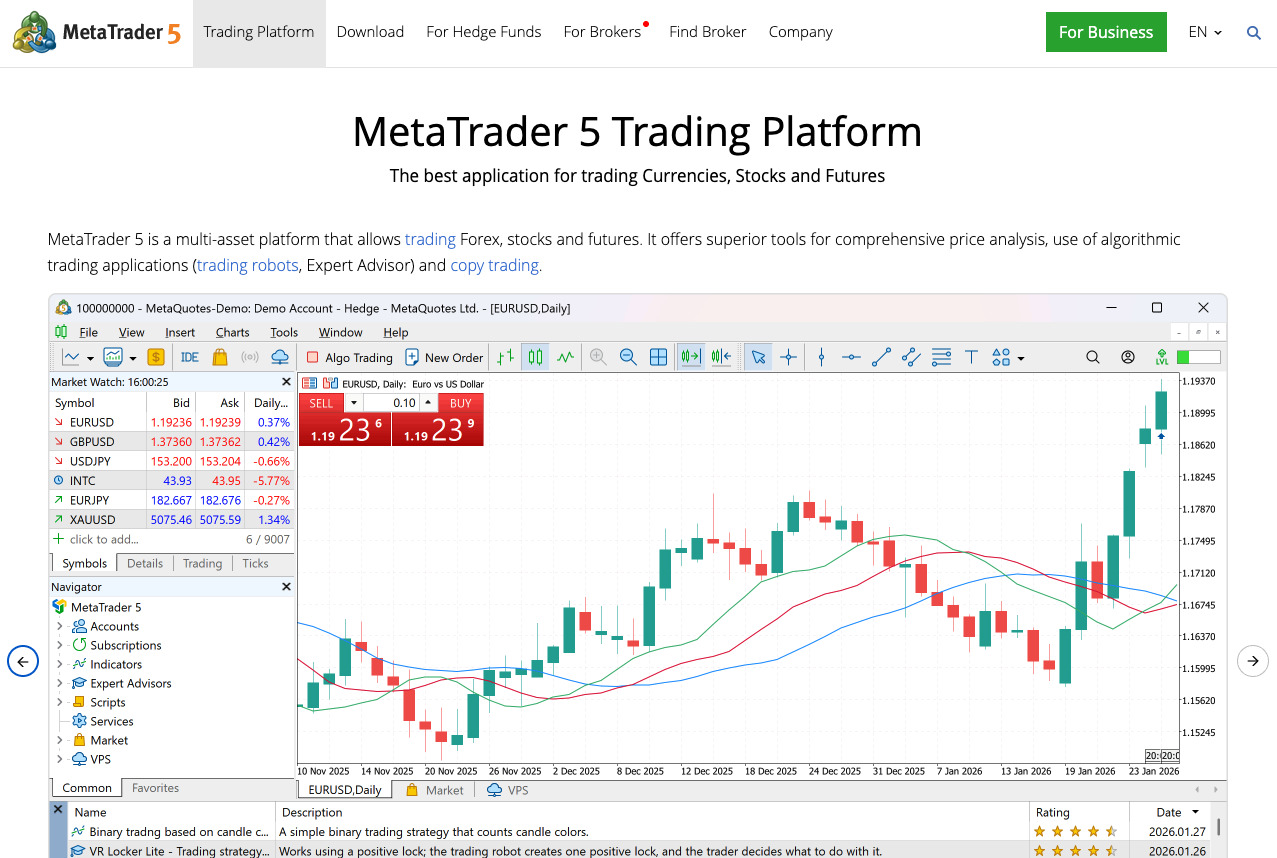
The MT5 workflow differs from a conventional REST API integration.
MetaTrader 5 itself is not a simple Webhook receiver.
AlgoWay uses a dedicated AlgoWayWS-MT5 Expert Advisor, which is installed directly in the MT5 terminal.
Workflow:
Elixo AI Alert / TradingView
          ↓
       AlgoWay
          ↓
    WebSocket connection
          ↓
   AlgoWayWS-MT5 EA
          ↓
     MetaTrader 5
          ↓
        Broker
AlgoWayWS-MT5 EA maintains a persistent connection between AlgoWay and the MetaTrader 5 terminal.
Setup
In AlgoWay, create a Webhook with this destination:
MetaTrader 5Then:
- download the current version of AlgoWayWS-MT5 EA;
- install the EA in MetaTrader 5;
- attach the EA to a chart;
- allow Algorithmic Trading;
- enter the UUID of your AlgoWay Webhook;
- check the connection status;
- send a test signal.
At the time of checking, the AlgoWay documentation describes the current release branch as AlgoWayWS-MT5 EA 2.14, but always use the current version from AlgoWay, as the EA is updated.
MT5 must remain running
This is essential.
Because the EA runs inside MetaTrader 5, the terminal must run continuously.
A Windows VPS is typically used for round-the-clock automation:
Windows VPS
   ↓
MetaTrader 5
   ↓
AlgoWayWS-MT5 EA
If the terminal is closed or the VPS is turned off, the EA will not be able to execute the command.
TradeLocker
AlgoWay uses a separate integration for TradeLocker.
Depending on your account, creating the Webhook will require:
- the TradeLocker platform URL;
- Email;
- Password;
- Server;
- a numeric Account ID.
In AlgoWay:
Source: TradingView
Platform: TradeLocker
For passing the quantity directly, the documentation recommends an option such as:
Quantity Multiplier: Absolute
Multiplier: 1
You also need to choose a Trade Type, such as Hedge or Reverse.
JSON example:
{
  "platform_name": "tradelocker",
  "ticker": "{{ticker}}",
  "order_action": "{{strategy.order.action}}",
  "order_contracts": 1
}
For AI Alert, instead of a TradingView-generated value, you can also use:
{{strategy.order.action}}because Elixo substitutes buy or sell.
Match-Trader
For Match-Trader, AlgoWay requires details of the broker environment.
The settings may include:
- the broker's Match-Trader URL;
- Email;
- Password;
- Account ID;
- Broker ID.
AlgoWay provides the feature Auto detect Broker ID, which is the preferred way to determine the Broker ID.
The broker URL should be entered without a trailing /.
Example:
{
  "platform_name": "matchtrader",
  "ticker": "{{ticker}}",
  "order_action": "{{strategy.order.action}}",
  "order_contracts": 1
}
For a TradingView Strategy, you can use:
{
  "platform_name": "matchtrader",
  "ticker": "{{ticker}}",
  "order_contracts": "{{strategy.order.contracts}}",
  "order_action": "{{strategy.market_position}}",
  "price": "{{close}}"
}
DXtrade
For DXtrade, create a separate route:
Source: TradingView
Platform: DXtrade
AlgoWay requests the parameters of the specific DXtrade account, including the platform URL, login/password and Account ID, depending on the broker environment.
Example:
{
  "platform_name": "dxtrade",
  "ticker": "{{ticker}}",
  "order_action": "{{strategy.order.action}}",
  "order_contracts": 1
}
In TradingView, you can use the standard version:
{
  "platform_name": "dxtrade",
  "ticker": "{{ticker}}",
  "order_action": "{{strategy.market_position}}",
  "order_contracts": "{{strategy.order.contracts}}",
  "price": "{{close}}"
}
cTrader
For cTrader, use:
"platform_name": "ctrader"AlgoWay supports a separate cTrader integration and also lists cTrader Open API in the general JSON schema.
Example for AI Alert:
{
  "platform_name": "ctrader",
  "ticker": "{{ticker}}",
  "order_action": "{{strategy.order.action}}",
  "order_contracts": 1
}
Pay particular attention to the Hedge and Reverse modes.
For example, if a LONG position already exists and a SHORT signal arrives:
- in Reverse Mode, the existing LONG position may be closed and a SHORT position then opened;
- in Hedge Mode, the original LONG position may remain while a SHORT position is opened alongside it, if the account permits this.
You must check the exact behavior for your route. AlgoWay specifically warns against automatically assuming that every opposite signal necessarily means “close and reverse”.
Capital.com
AlgoWay connects to Capital.com through its API.
On the Capital.com side, you need to prepare:
- a Live or Demo account;
- enabled 2FA;
- API Key;
- a dedicated Custom API Password;
- the exact Account Name.
In AlgoWay, then select:
Platform: Capital.com
API Mode: Demo or Live
and enter:
Email
Account Name
API Key
API Password
Important: API Password is not your regular Capital.com account password, but a dedicated password created for the API Key.
AlgoWay also emphasizes that Account Name is the displayed name of the trading account, not its internal numeric Account ID.
Demo is recommended for the first connection.
AI Alert example:
{
  "platform_name": "capitalcom",
  "ticker": "{{ticker}}",
  "order_action": "{{strategy.order.action}}",
  "order_contracts": 1
}
Alpaca
Alpaca is particularly useful for automated stock trading.
For example:
AAPL
TSLA
NVDA
AMD
AlgoWay connects to Alpaca using an API Key and API Secret.
It is best to start with Paper Trading.
In AlgoWay:
Platform: Alpaca
API Mode: Demo
API Key: ...
API Secret: ...
After creating the route, AlgoWay lets you test it through Webhook Logs → Test Webhook.
For example:
{
  "platform_name": "alpaca",
  "ticker": "AAPL",
  "order_action": "buy",
  "order_contracts": 1
}
After a successful test, you can connect Elixo AI Alert.
This lets you build the following chain:
Elixo AI analysis of AAPL
        ↓
    OPEN LONG
        ↓
      Webhook
        ↓
      AlgoWay
        ↓
    Alpaca API
        ↓
     BUY AAPL
Symbol Mapping - one of the most common problems
It is very important to understand that the asset name at the source may differ from the name used by the broker.
For example, TradingView or AI Alert sends:
XAUUSDwhile a particular MT5 broker uses:
XAUUSDmor:
XAUUSD.aThe same can happen with:
- indices;
- gold;
- oil;
- cryptocurrencies;
- perpetual futures;
- CFD.
AlgoWay and its MT5 tools support symbol mapping, and the AlgoWay documentation identifies symbol mismatches as a common reason for execution failure.
Therefore, during initial testing, always check the exact instrument name on the destination platform.
Hedge or Reverse - which should you choose?
This is another important AlgoWay setting.
Reverse
Suitable for strategies where only one directional position should exist at a time.
For example:
a LONG exists
↓
a SHORT signal arrives
↓
the LONG is closed
↓
a SHORT is opened
Hedge
Suitable for systems where LONG and SHORT positions can exist independently.
a LONG exists
↓
a SHORT signal arrives
↓
the LONG remains
+
a SHORT is opened
Whether hedging is actually possible also depends on the destination platform and the trading account type.
For a simple single-direction strategy, Reverse is usually easier to control.
Independent Long/Short systems may require Hedge.
Be sure to test this on Demo before starting.
How to close positions
AlgoWay understands several closing commands.
For example:
{
  "platform_name": "metatrader5",
  "ticker": "EURUSD",
  "order_action": "flat"
}
To close all positions in an instrument:
{
  "platform_name": "metatrader5",
  "ticker": "EURUSD",
  "order_action": "closeall"
}
In Hedge Mode, you may also use close_side:
{
  "platform_name": "metatrader5",
  "ticker": "EURUSD",
  "order_action": "flat",
  "close_side": "long"
}
or:
"close_side": "short"However, you must check whether the specific command is supported by the selected AlgoWay route.
Be sure to use Webhook Logs
One of AlgoWay's useful features is centralized Webhook Logs.
If a trade did not open, do not immediately change every setting.
Check the chain one stage at a time.
No entry in AlgoWay Logs
This means the Webhook did not reach AlgoWay at all.
Check:
- Webhook URL;
- whether AI Alert is active;
- TradingView Alert;
- whether OPEN LONG / OPEN SHORT actually occurred;
- whether the URL is correct.
AlgoWay received the request, but there is a JSON error
Check:
- quotation marks;
- commas;
- field names;
platform_name;- empty values.
AlgoWay accepted the JSON, but the broker rejected the trade
Check:
- API credentials;
- position size;
- symbol;
- minimum size;
- quantity increment;
- available margin;
- the trading session;
- permission to SHORT;
- SL/TP;
- account settings.
Breaking the problem down into these levels makes it much easier to locate the error.
How to test the system properly
Never start setting up the system with a large live order.
We recommend this sequence:
1. Create an AlgoWay route.
2. Connect the destination platform.
3. Use the built-in Test Webhook, if available.
For example:
{
  "platform_name": "alpaca",
  "ticker": "AAPL",
  "order_action": "buy",
  "order_contracts": 1
}
4. Check AlgoWay Webhook Logs.
5. Check the broker account itself.
6. Then connect AI Alert or TradingView.
7. Use a Demo/Paper account or the minimum permitted size.
8. Test BUY separately.
9. Test SELL separately.
10. Test position closing separately.
11. Only then add SL/TP, trailing stop and more complex logic.
The AlgoWay documentation also recommends this step-by-step approach.
API security
If the destination platform is connected through an API:
- create a separate API Key for automation;
- do not enable withdrawal permissions if they are not needed;
- use only the necessary Trade permissions;
- apply an IP whitelist if the platform and connection architecture allow it;
- do not publish the API Secret;
- do not publish the AlgoWay Webhook URL;
- use Demo/Paper first.
The Webhook URL is effectively part of the trade management system, so treat it as private information.
Example of a fully automated system
Suppose you want to search automatically for an entry point in TSLA stock.
Create an AI Alert in Elixo:
Asset: TSLA
Direction: LONG
Timeframe: 1H
Analysis interval: 1 hour
The AI performs regular analysis.
While the result is:
WAITnothing happens.
After several analyses, this appears:
OPEN LONG
Confidence: 86
Elixo generates:
{
  "platform_name": "alpaca",
  "ticker": "TSLA",
  "order_action": "buy",
  "order_contracts": 1
}
and sends the message to AlgoWay.
AlgoWay:
receives JSON
↓
identifies the Alpaca route
↓
uses your Alpaca API
↓
sends BUY TSLA
↓
receives the Alpaca response
↓
saves it in Webhook Logs
This way, the entire chain runs automatically:
AI market analysis → decision → Webhook → AlgoWay → broker → trade.
Example: Multi DCA Strategy → MetaTrader 5
Second option:
Multi DCA Strategy [Dimkud]
        ↓
TradingView Alert
        ↓
AlgoWay Webhook
        ↓
AlgoWayWS-MT5 EA
        ↓
MetaTrader 5
        ↓
Broker
TradingView Message:
{
  "platform_name": "metatrader5",
  "ticker": "{{ticker}}",
  "order_action": "{{strategy.market_position}}",
  "order_contracts": "{{strategy.order.contracts}}",
  "price": "{{close}}"
}
TradingView substitutes the actual values, AlgoWay receives the message and forwards the command to MT5.
This lets you use TradingView as the strategy engine and MetaTrader 5 as the actual execution venue.
Why we recommend considering AlgoWay
Of course, you can build this infrastructure yourself.
You would need:
Webhook server
+
JSON parser
+
Alpaca API client
+
Capital.com API client
+
TradeLocker connector
+
Match-Trader connector
+
DXtrade connector
+
cTrader connector
+
MT5 Expert Advisor
+
authentication
+
logs
+
error handling
+
VPS
+
maintenance for API changes
If you are a developer and want full control of the infrastructure, that is a realistic option.
But for an ordinary user, using a ready-made bridge is much simpler.
AlgoWay already provides:
- reception of TradingView-compatible Webhooks;
- a unified JSON format;
- integration with several types of trading platforms;
- a dedicated EA for MetaTrader 5;
- Message Wizard and message creation tools;
- Webhook Logs;
- various Trade Modes;
- SL/TP and additional trade management parameters;
- management of multiple trading destinations from a single dashboard.
This makes AlgoWay well suited as the link between Elixo AI Alert / TradingView and a trading platform that cannot directly receive the required Webhook itself.
Frequently asked questions
Can Elixo AI Alert send signals to MetaTrader 5?
Yes.
Workflow:
Elixo AI Alert
→ AlgoWay Webhook
→ AlgoWayWS-MT5 EA
→ MetaTrader 5
MT5 with the installed EA must remain running.
Can AI Alert trade stocks through Alpaca?
Yes.
Elixo can generate a signal, for example for AAPL or TSLA, and AlgoWay can receive the Webhook and forward the trading command through the Alpaca Trading API.
We recommend testing the system with Alpaca Paper Trading first.
Can I connect TradeLocker?
Yes.
AlgoWay has a dedicated TradeLocker integration with settings for URL, account, server and Account ID.
Can I connect Match-Trader?
Yes.
AlgoWay supports a separate Match-Trader route, including Broker ID and its Auto Detect feature.
Can I connect DXtrade?
Yes.
AlgoWay has a dedicated DXtrade route and accepts TradingView-compatible JSON for execution.
Can I connect cTrader?
Yes.
AlgoWay uses a separate cTrader connector, and in JSON you specify:
"platform_name": "ctrader"Can I connect Capital.com?
Yes.
The connection uses the Capital.com API with an API Key, Custom API Password and Account Name.
Can AlgoWay decide when to buy on its own?
Not in the workflow we describe here.
The trading decision is generated by:
- Elixo AI Alert;
- Multi DCA Strategy [Dimkud];
- another TradingView strategy/indicator;
- or another signal source.
AlgoWay is the execution and routing layer between the trading signal and the destination platform.
Can I send Take Profit and Stop Loss?
Yes, if the selected AlgoWay route and destination platform support the corresponding parameters.
In particular, these fields are available:
sl_price
tp_price
stop_loss
take_profit
trailing_pips
However, the units of stop_loss and take_profit may differ depending on the platform.
Therefore, for Elixo AI Alert, it is more convenient where possible to use the calculated absolute values:
{{stop_loss_price}}
{{take_profit_price}}
together with:
sl_price
tp_price